
How to Set up Deduction and Match In Quickbooks
NOTE: This guide is built based on customer experience & gathered knowledge, not direct data from QuickBooks payroll. Screenshots or procedures may differ from what you see in your account
Adding Deduction Codes
- Log into Quickbooks
- Navigate to the employee's profile
- At the bottom of the page click edit in the Deductions and Contributions section
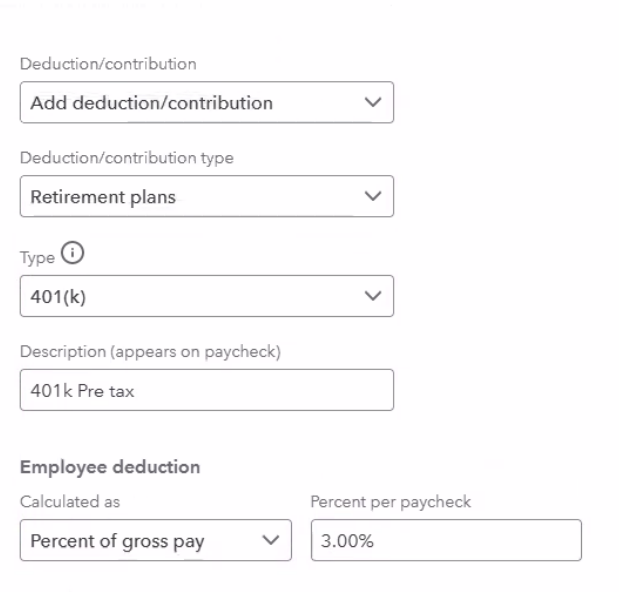
- Select Add deduction/contribution
- Select Retirement Plans
- Select either 401k or Roth from the drop down
- Label it accordingly (either 401k or Roth)
- Select either percent of gross pay or dollar amount and input the amount in the box to the right. If you are building this in preparation for future use, just add a placeholder amount of $1
- Save! If this was a future-use build, you can now delete it from the employee's profile to avoid future calcualtions
Adding Match Codes
- Log into Quickbooks
- Navigate to the employee's profile
- At the bottom of the page click edit in the Deductions and Contributions section
- Select Add deduction/contribution
- Select Retirement Plans
- Select "Company Only Plan" from the drop down
- Label it accordingly (Safe Harbor Match, 401k Match, etc)
- Select either percent of gross pay or dollar amount and input the amount in the box to the right
- Save
For any further assistance, please submit a help desk ticket here and we will get back to you as soon as possible.
Contact Us

Submit a Ticket
Submit a ticket and our team will respond as soon as possible!

Chat With Us
