
NOTE: This guide is built based on customer experience & gathered knowledge, not direct data from ADP RUN payroll. Screenshots or procedures may differ from what you see in your account
To add deduction codes to your ADP Run account, follow the steps below:
1) Have your payroll admin log into your ADP RUN account
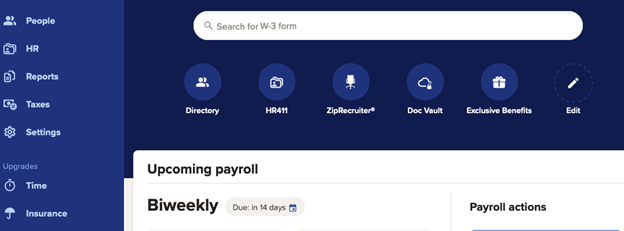
2) Navigate to the settings (usually on the left side of the screen)
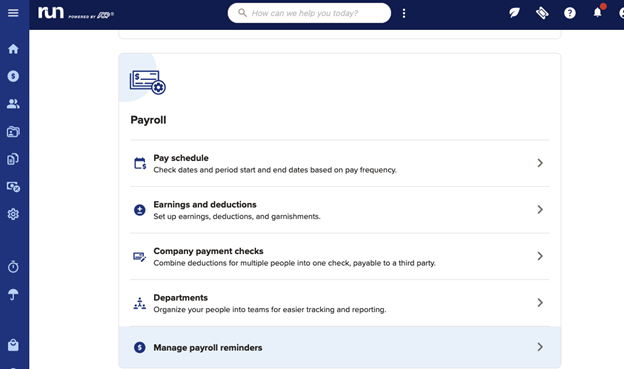
3) Under the Payroll Section, select "Earnings and Deductions"
4) Select "Retirement" at the top of the screen.
.png?width=624&height=399&name=image%20(11).png)
5) Select "Add a retirement deduction" in the top right.
.png?width=670&height=458&name=image%20(5).png)
6) Select the deduction you'd like to add from the Deduction drop down and click "Save"
.png?width=646&height=439&name=image%20(6).png)
7) Mark whether or not your plan allows for company match. If yes, enter your match formula into the appropriate boxes. If no, select no and move on to step 8.
.png?width=670&height=571&name=image%20(8).png)
8) Scroll down to the bottom of the screen and click save.
9) Repeat Steps 4-7 for each deduction code that needs added.
For any further assistance, please submit a help desk ticket here and we will get back to you as soon as possible.